Dell™ One Identity Cloud Access Manager 8.1 - How to Configure Microsoft Office 365
Prerequisites
Installing Cloud Access Manager
Adding Microsoft® Office 365™ to Cloud Access Manager
Testing Microsoft® Office 365™
Adding Microsoft® Outlook® to the Cloud Access Manager applications portal
Using Microsoft® Lync®
Adding Microsoft® SharePoint® to the Cloud Access Manager applications portal
Useful download links
Legal notices
Testing Microsoft® Office 365™
To test Microsoft® Office 365™
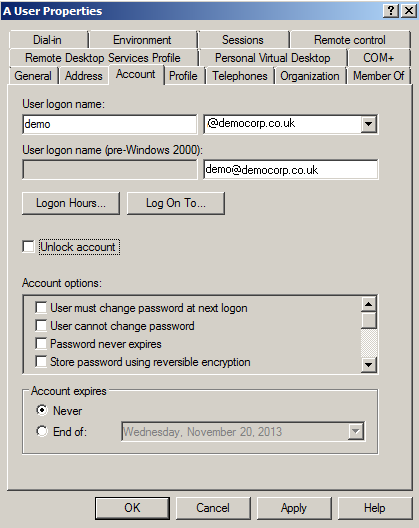
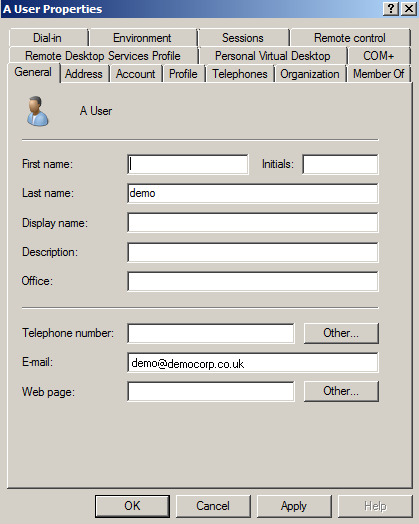
|
4 |
Log in to Windows® as the new user. |
|
7 |
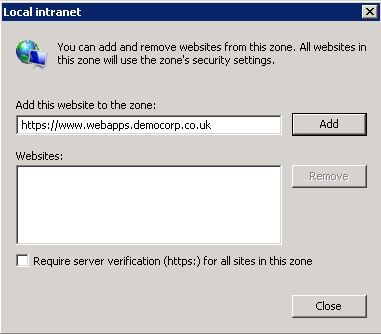
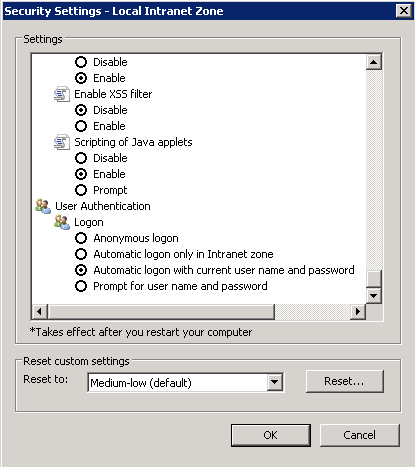
On the Security Settings - Local Intranet Zone page, make sure that Automatic logon with current user name and password is selected. |
Adding Microsoft® Outlook® to the Cloud Access Manager applications portal
|
2 |
Add Outlook to the portal using the applications catalog. |
|
3 |
Return to the Cloud Access Manager applications portal and click Outlook to verify that this button opens the Web version of Outlook. |
|
4 |
Run the Outlook connectivity test as the new user. You will see results similar to those on the Microsoft® Remote Connectivity Analyzer page shown below. At least one auto discovery method must be successful. |

|
6 |
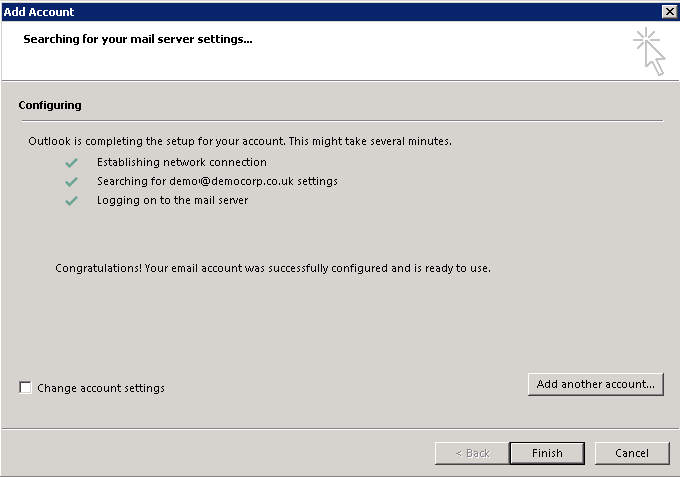
Follow the Add Account wizard to set up a new account based on the user’s detected email address. |
|
7 |
When Outlook is open, select the bottom-right status bar to view any connectivity errors. |
Using Microsoft® Lync®
|
1 |

|
3 |
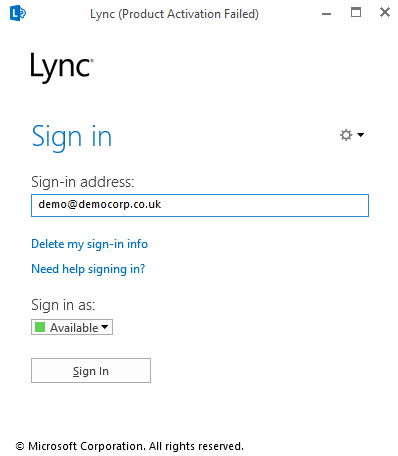
To confirm connectivity with Microsoft® Exchange Server®, check that the meeting icon is displayed in the top left corner of the Lync® dialog box shortly after log in. If a user is not currently signed in to Outlook, they will be prompted for their Exchange credentials. This is true for both domain and non-domain joined users. |
Adding Microsoft® SharePoint® to the Cloud Access Manager applications portal
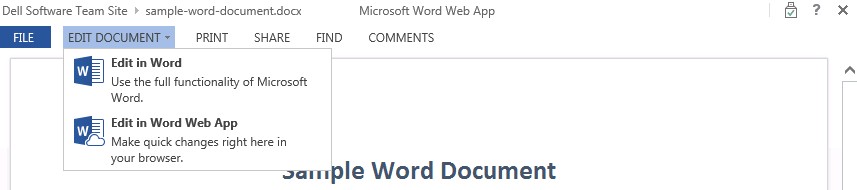
This section describes how to add Microsoft® SharePoint® to the Dell™ One Identity Cloud Access Manager applications portal and how to configure it to work with Microsoft® Word®. You can also use these instructions to configure Microsoft® Excel® and PowerPoint® with SharePoint®.
|
1 |
|
2 |
Return to the portal and click SharePoint to verify that the new button opens the SharePoint Team Site. |
|
4 |
|
6 |
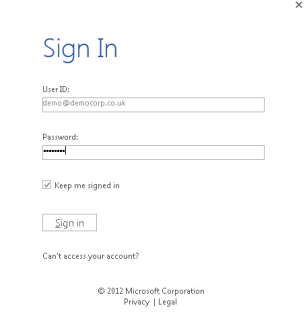
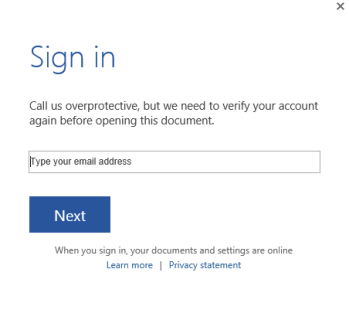
Next, you are prompted to enter the user’s password. Be sure to select the Keep me signed in box. |